AI Supermarket Large Model Client Setup Guide
This guide is for AI Supermarket customers. It explains how to prepare your account, create an API Key, choose a group, and connect Claude Code, Codex CLI, Codex Desktop, Gemini CLI, Hermes Agent, OpenCode, OpenClaw, Antigravity, and image generation APIs according to each client's official configuration rules.
Reading Path
| Goal | Start With | Expected Result |
|---|---|---|
| First-time AI Supermarket setup | Quick Start -> Sections 1, 2, 3 | A usable account, available balance or subscription, and a grouped API Key |
| Configure a development client | Section 4, Client Setup Overview -> the matching client section | Correct Base URL, Key, model name, and config file |
| Configure image generation | Section 13, Image Generation APIs | A Key that supports text-to-image or image editing, plus copyable request examples |
| Calls fail or responses are slow | Section 14, Verification and Troubleshooting | Locate whether the issue is Key, group, quota, network, or path related |
Quick Start
| Item | Current Value | Description |
|---|---|---|
| Customer portal | https://aisupermarket.work | Register, log in, recharge/subscribe, and create API Keys |
| API gateway root | https://aisupermarket.work | Claude Code and Gemini CLI use the root address in environment variables; Codex / OpenCode add /v1, /v1beta, and other paths according to their official configs |
| Site name | AI Supermarket | Used to confirm that you are visiting the AI Supermarket portal |
| Network access | Direct connection is supported; proxy users should prefer European nodes | If login, registration, recharge, or responses are abnormal, switch nodes or temporarily disable the proxy |
| Support and community | Support channel shown in the AI Supermarket portal | Contact support for recharge, grouping, Key, and client setup issues |
| Example Key | sk-******** | Use the real Key generated in your AI Supermarket portal |
An API Key is equivalent to an account calling credential. Do not share your real Key with others, and do not put it in public screenshots, code repositories, group chats, or support tickets. If you confirm that a Key has leaked, disable or delete the old Key in the AI Supermarket portal immediately and create a new one.
1. Log In to the Portal and Prepare Quota
Confirm that your account can log in normally and has usable balance or subscription quota.
Open https://aisupermarket.work.
Log in with your account. If you do not have one, register according to the page instructions.
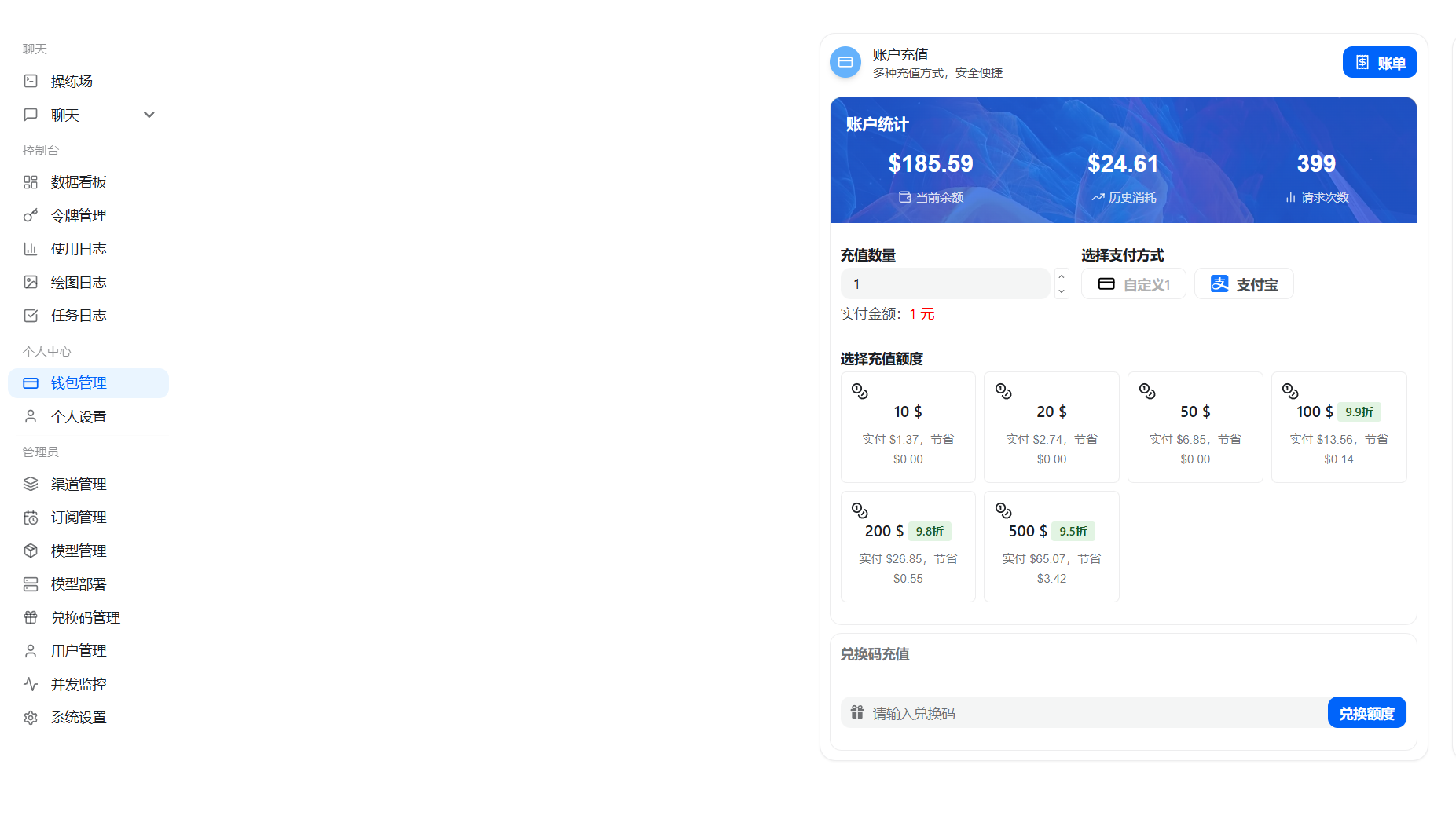
After logging in, go to wallet management and confirm that the wallet has enough balance.
If you need to recharge, do it in wallet management and choose balance recharge as needed.
If the client reports insufficient balance or quota, return to the portal first and check balance, subscription, and Key quota limits.
AI Supermarket supports direct connection. If login, registration, or recharge pages cannot be opened, or if the client has high latency or slow responses, check proxy settings first: switch nodes or temporarily disable the proxy and retry. AI Supermarket gateway servers may be outside your local region. When a proxy is needed, choose a stable node close to the gateway region and retry.
2. Create an API Key
Open Token Management from the left menu. Use the website domain directly: https://aisupermarket.work.
Before creating a Key, confirm three things:
| Check Item | Recommendation |
|---|---|
| Key name | Name it by client or device, for example Claude Code Workstation or Codex CLI |
| Group | Choose according to the software you want to connect; you can adjust it later in the Key list |
| Limits | For production use, set quota limits; for personal testing, defaults are usually fine |
Recommended Key Creation Flow
Click Add Token. Enter an identifiable name, such as Claude Code Workstation, Codex CLI, or Gemini CLI. Select the model/platform group in Token Group. Set quota limits, rate limits, expiration time, or IP restrictions if needed. Click Submit.
The Key must be assigned to the correct group. If the Key is ungrouped or assigned to a mismatched group, the client may not see models or may be unable to call the required protocol.
3. Choose a Group
The group determines which model platform, protocol type, and rate multiplier this Key can use. When choosing a group, check the client protocol first, then the model name.
| Use Case | Recommended Group Type | Description |
|---|---|---|
| Codex CLI / Codex Desktop / OpenAI-compatible | OpenAI / Codex group | Use Responses or OpenAI-compatible APIs |
| Claude Code | Claude / Anthropic group, or an OpenAI group that supports message forwarding | Use ANTHROPIC_BASE_URL and ANTHROPIC_AUTH_TOKEN |
| Gemini CLI | Gemini group | Use GOOGLE_GEMINI_BASE_URL, GOOGLE_GENAI_API_VERSION, GEMINI_API_KEY, GEMINI_MODEL |
| GPT text-to-image / image-to-image | OpenAI / GPT Image group | Text-to-image uses /v1/images/generations; image-to-image/inpainting uses /v1/images/edits; Responses can use the image_generation tool |
| Gemini image generation | Gemini Image group | Use /v1beta/models/{model}:generateContent and set responseModalities |
| Hermes Agent | OpenAI Chat Completions-compatible group | Use ~/.hermes/config.yaml, and set base_url to https://aisupermarket.work/v1 |
| OpenClaw | OpenAI Responses or Chat Completions-compatible group | Use a custom provider; Responses uses openai-responses, Chat Completions uses openai-completions |
| Antigravity | Antigravity group | Claude / Gemini CLI environment variables use the /antigravity root path; OpenCode uses /antigravity/v1 or /antigravity/v1beta |
After creation, the Key appears in the list. Copy the Key and paste it into the corresponding config file or environment variables in the client sections below.
Completion standard: the new Key is visible in the Key list, the Key has selected a group, and the account balance or subscription is available. Then move on to client configuration.
Figure 1: Open the Token Management page.
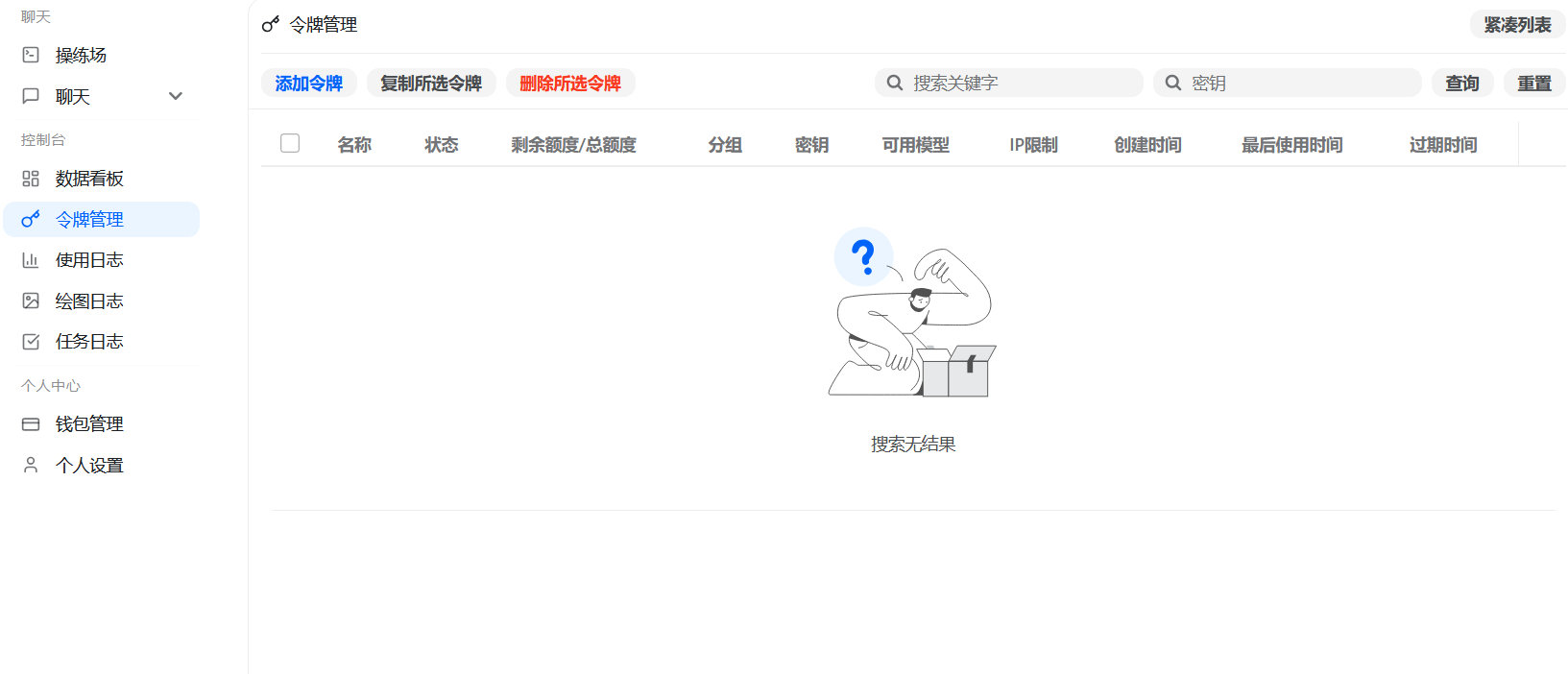
Figure 2: After entering the API Key page, creating, copying, disabling, and grouping are all done here.
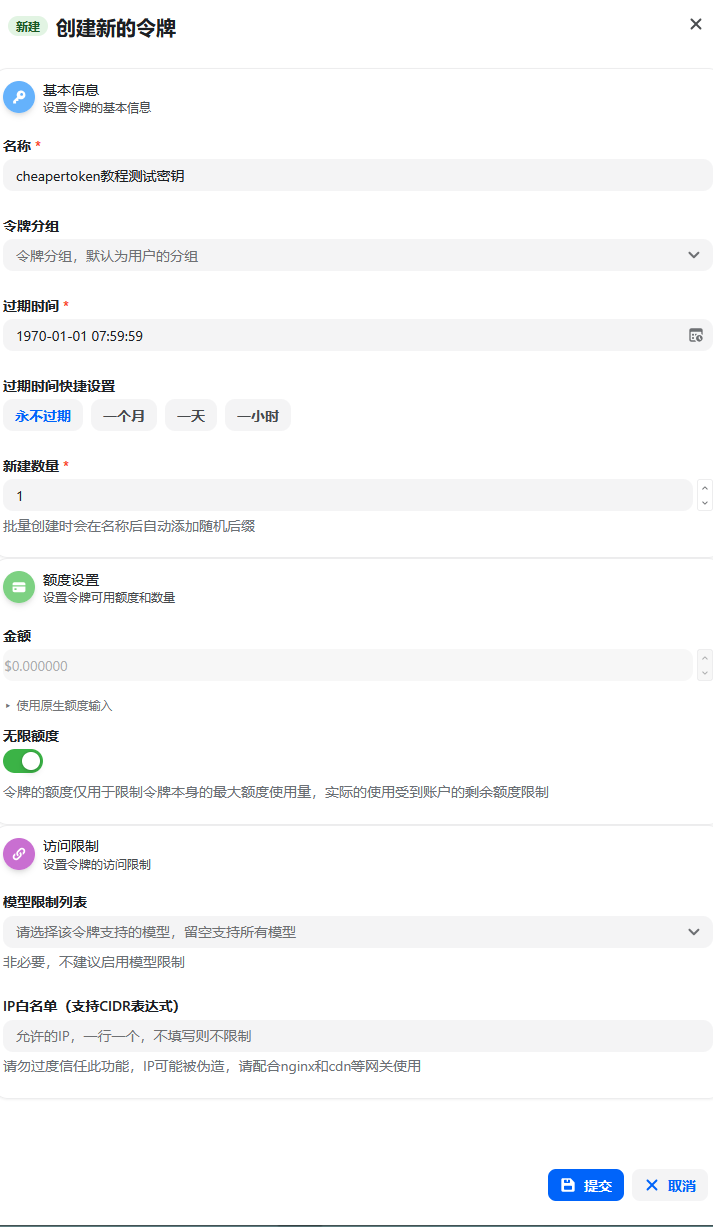
Figure 3: Set an identifiable name for the Key and configure quota, rate, expiration, or IP limits as needed.
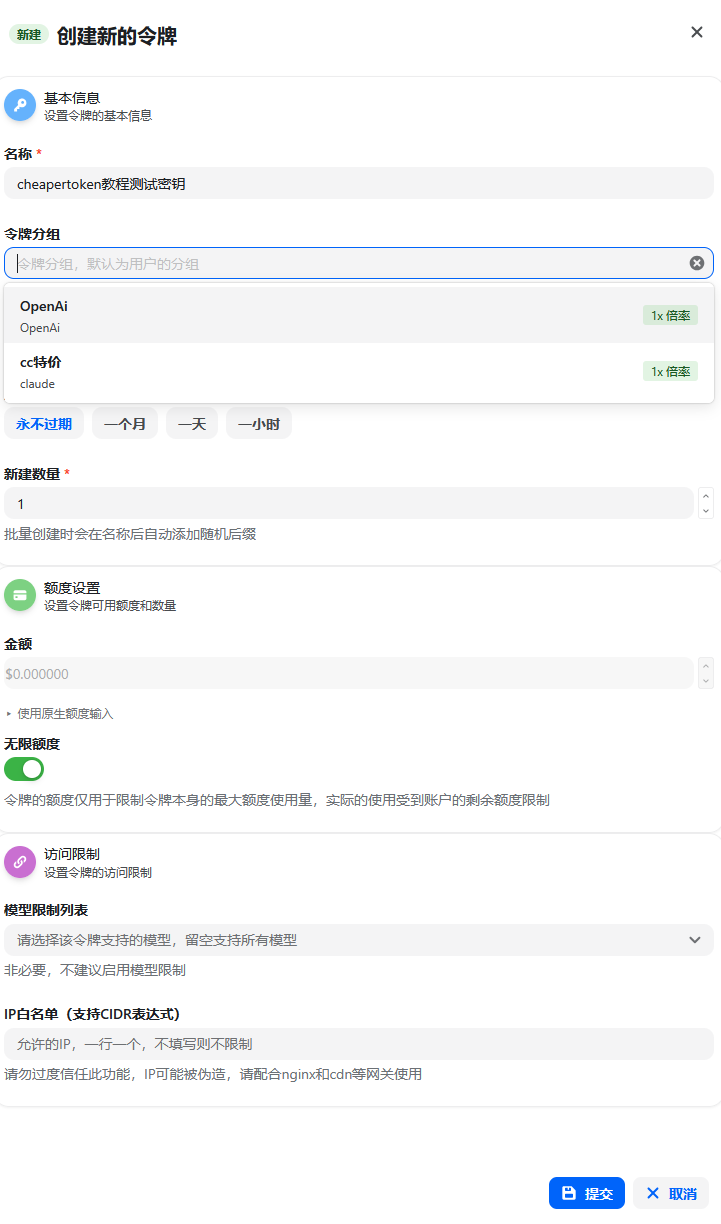
Figure 4: The group determines the models, protocols, and multipliers the Key can call.
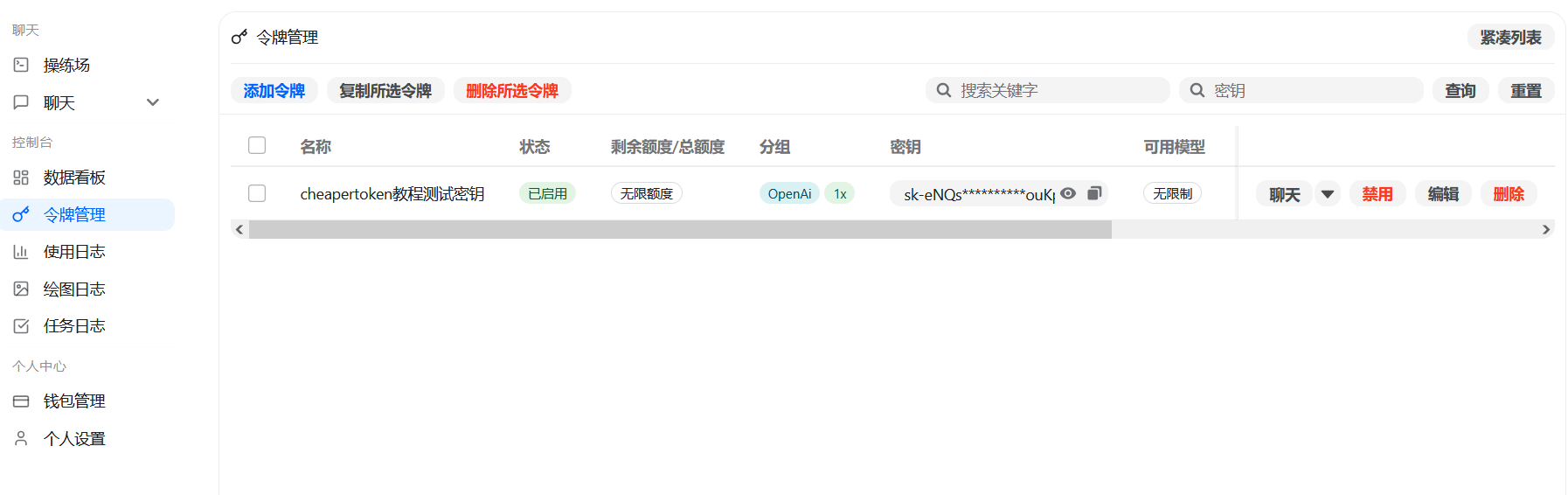
Confirm that the Key is enabled and grouped before copying it into client configuration.
4. Client Setup Overview
Choose the matching section according to the client type. Different clients handle Base URL differently: some require the gateway root address, while others require the full /v1 or /v1beta path.
| You Are Configuring | Go To | Key Check |
|---|---|---|
| Claude Code | Section 5, Claude Code | ANTHROPIC_BASE_URL uses the gateway root address |
| Codex CLI / Desktop / IDE extension | Section 6, Codex CLI and Codex Desktop | base_url uses the full /v1, and wire_api uses responses |
| Gemini CLI | Section 8, Gemini CLI | Base URL uses the gateway root address, and GOOGLE_GENAI_API_VERSION=v1beta is set |
| OpenCode / OpenClaw / Hermes | Sections 9, 10, 11 | Choose OpenAI Responses or Chat Completions according to the tool |
| GPT / Gemini image generation | Section 13, Image Generation APIs | The Key group must support image generation |
| Client | Config Location / Variable | Base URL Format | Protocol |
|---|---|---|---|
| Claude Code | ANTHROPIC_BASE_URL, ANTHROPIC_AUTH_TOKEN, or ~/.claude/settings.json | https://aisupermarket.work | Anthropic Messages |
| Codex CLI | ~/.codex/config.toml, ~/.codex/auth.json | https://aisupermarket.work/v1 | OpenAI Responses |
| Codex Desktop / IDE extension | Same Codex CLI config directory | https://aisupermarket.work/v1 | OpenAI Responses |
| Codex CLI WebSocket | Same Codex CLI config, with additional WebSocket config | https://aisupermarket.work/v1 | Responses WebSocket |
| Gemini CLI | GOOGLE_GEMINI_BASE_URL, GOOGLE_GENAI_API_VERSION, GEMINI_API_KEY, GEMINI_MODEL | https://aisupermarket.work + v1beta | Gemini Native |
| GPT text-to-image / image-to-image | HTTP API / OpenAI SDK | Text-to-image: /v1/images/generations; image-to-image: /v1/images/edits; Responses: /v1/responses + image_generation | OpenAI Images / Responses |
| Gemini image generation | HTTP API / Gemini SDK | https://aisupermarket.work/v1beta/models/{model}:generateContent | Gemini Native Image |
| Hermes Agent | ~/.hermes/config.yaml | https://aisupermarket.work/v1 | OpenAI-compatible Chat Completions |
| OpenCode | opencode.json | OpenAI: /v1; Gemini: /v1beta; Antigravity: /antigravity/v1 or /antigravity/v1beta | AI SDK Provider |
| OpenClaw | ~/.openclaw/openclaw.json or openclaw config set | OpenAI Responses: /v1; Chat Completions: /v1 | OpenClaw custom provider |
| Antigravity | Claude / Gemini environment variables or OpenCode Provider | CLI environment variables: https://aisupermarket.work/antigravity; OpenCode: full /antigravity/v1 or /antigravity/v1beta | Antigravity-compatible |
This guide follows the official configuration semantics of each client: Codex, Hermes, OpenCode, and OpenClaw base_url/baseURL fields use the full API version path; Claude Code / Gemini CLI environment variables use the gateway root address, and the client appends the API version path.
OpenCode and OpenClaw are not the same tool. OpenClaw can connect to an OpenCode provider or ACP harness, but customers should configure them separately according to their own documentation.
5. Claude Code
Claude Code uses Anthropic-compatible environment variables. It is recommended to verify with terminal environment variables first, then write the settings into a config file after confirming they work.
macOS / Linux
export ANTHROPIC_BASE_URL="https://aisupermarket.work"
export ANTHROPIC_AUTH_TOKEN="sk-********"
export CLAUDE_CODE_DISABLE_NONESSENTIAL_TRAFFIC=1
Windows PowerShell
$env:ANTHROPIC_BASE_URL="https://aisupermarket.work"
$env:ANTHROPIC_AUTH_TOKEN="sk-********"
$env:CLAUDE_CODE_DISABLE_NONESSENTIAL_TRAFFIC=1
Write to Config File
{
  "env": {
    "ANTHROPIC_BASE_URL": "https://aisupermarket.work",
    "ANTHROPIC_AUTH_TOKEN": "sk-********",
    "CLAUDE_CODE_DISABLE_NONESSENTIAL_TRAFFIC": "1",
    "CLAUDE_CODE_ATTRIBUTION_HEADER": "0"
  }
}
6. Codex CLI and Codex Desktop
Codex uses two files: config.toml for models and API endpoints, and auth.json for the API Key. Codex Desktop, IDE extensions, and CLI use the same configuration directory.
| System | Config Directory |
|---|---|
| macOS / Linux | ~/.codex |
| Windows | %userprofile%\.codex |
config.toml
model_provider = "OpenAI"
model = "gpt-5.4"
review_model = "gpt-5.4"
model_reasoning_effort = "xhigh"
disable_response_storage = true
network_access = "enabled"
windows_wsl_setup_acknowledged = true
model_context_window = 1000000
model_auto_compact_token_limit = 900000

[model_providers.OpenAI]
name = "OpenAI"
base_url = "https://aisupermarket.work/v1"
wire_api = "responses"
requires_openai_auth = true
auth.json
{
  "OPENAI_API_KEY": "sk-********"
}
After modifying ~/.codex/config.toml, ~/.codex/auth.json, or ~/.codex/.env, restart Codex Desktop, the IDE extension, or open a new CLI session so the configuration is reloaded.
7. Codex CLI WebSocket
WebSocket mode is for Codex scenarios that require Responses WebSocket. Based on the Codex config above, add the following fields:
[model_providers.OpenAI]
name = "OpenAI"
base_url = "https://aisupermarket.work/v1"
wire_api = "responses"
supports_websockets = true
requires_openai_auth = true

[features]
responses_websockets_v2 = true
WebSocket mode additionally enables feature switches in the Codex provider config.
8. Gemini CLI
Gemini CLI uses Gemini-native compatible variables. GOOGLE_GEMINI_BASE_URL uses the gateway root address, and the API version is specified through GOOGLE_GENAI_API_VERSION.
macOS / Linux
export GOOGLE_GEMINI_BASE_URL="https://aisupermarket.work"
export GOOGLE_GENAI_API_VERSION="v1beta"
export GEMINI_API_KEY="sk-********"
export GEMINI_MODEL="gemini-2.0-flash"
If the account and group have Gemini 3 permissions, GEMINI_MODEL can be changed to gemini-3-pro-preview or another model name allowed by the system page.
Windows CMD
set GOOGLE_GEMINI_BASE_URL=https://aisupermarket.work
set GOOGLE_GENAI_API_VERSION=v1beta
set GEMINI_API_KEY=sk-********
set GEMINI_MODEL=gemini-2.0-flash
Windows PowerShell
$env:GOOGLE_GEMINI_BASE_URL="https://aisupermarket.work"
$env:GOOGLE_GENAI_API_VERSION="v1beta"
$env:GEMINI_API_KEY="sk-********"
$env:GEMINI_MODEL="gemini-2.0-flash"
Gemini CLI uses the gateway root address and specifies the version through GOOGLE_GENAI_API_VERSION.
9. Hermes Agent
Hermes Agent manages models through ~/.hermes/config.yaml. When AI is used as an OpenAI-compatible custom endpoint, base_url should use the full /v1 path.
config.yaml
model:
  provider: custom
  default: gpt-5.4
  base_url: https://aisupermarket.work/v1
  api_key: sk-********
  api_mode: chat_completions
If you do not want to write the Key into the config file, put the secret in shell environment variables or local secure credentials, then reference it using the method supported by Hermes documentation. Replace default with an actual model name available in the customer's Key group.
Hermes custom endpoints target OpenAI-compatible /v1/chat/completions. If the customer chooses a Codex model that only supports Responses, switch to a model/group that supports Chat Completions, or use Codex/OpenClaw Responses configuration instead.
10. OpenCode
OpenCode uses opencode.json. First confirm the platform you want to connect to, then choose the corresponding Base URL suffix.
| Platform | Base URL |
|---|---|
| OpenAI / Codex | https://aisupermarket.work/v1 |
| Gemini | https://aisupermarket.work/v1beta |
| Antigravity Claude | https://aisupermarket.work/antigravity/v1 |
| Antigravity Gemini | https://aisupermarket.work/antigravity/v1beta |
OpenAI / Codex Example
{
  "provider": {
    "openai": {
      "options": {
        "baseURL": "https://aisupermarket.work/v1",
        "apiKey": "sk-********"
      }
    }
  }
}
Gemini Example
{
  "provider": {
    "gemini": {
      "npm": "@ai-sdk/google",
      "options": {
        "baseURL": "https://aisupermarket.work/v1beta",
        "apiKey": "sk-********"
      }
    }
  }
}
OpenCode is not an alias for OpenClaw. OpenClaw can use OpenCode as a provider or external harness, but the two tools have different config files and runtime behavior.
OpenCode fills /v1, /v1beta, or Antigravity paths according to provider type.
11. OpenClaw
OpenClaw uses ~/.openclaw/openclaw.json or openclaw config set to configure a custom model provider. AI Supermarket OpenAI Responses-compatible example:
{
  "env": {
    "API_KEY": "sk-********"
  },
  "agents": {
    "defaults": {
      "model": {
        "primary": "gpt-5.4"
      }
    }
  },
  "models": {
    "mode": "merge",
    "providers": {
      "ai": {
        "baseUrl": "https://aisupermarket.work/v1",
        "apiKey": "${AISUPERMARKET_API_KEY}",
        "api": "openai-responses",
        "models": [
          {
            "id": "gpt-5.4",
            "name": "GPT-5.4",
            "reasoning": true,
            "input": ["text"],
            "contextWindow": 1000000,
            "contextTokens": 900000,
            "maxTokens": 32000
          }
        ]
      }
    }
  }
}
After writing the config, run:
openclaw config validate
openclaw models list
openclaw models status
If the customer's group only provides Chat Completions, change api to openai-completions; baseUrl still uses https://aisupermarket.work/v1. primary and models[].id must match actual model names available on the page.
12. Antigravity
Antigravity groups use different paths depending on client mode. CLI environment variables use the /antigravity root path; OpenCode providers use the full version path.
# Claude / Anthropic mode
export ANTHROPIC_BASE_URL="https://aisupermarket.work/antigravity"
export ANTHROPIC_AUTH_TOKEN="sk-********"

# Gemini mode
export GOOGLE_GEMINI_BASE_URL="https://aisupermarket.work/antigravity"
export GOOGLE_GENAI_API_VERSION="v1beta"
export GEMINI_API_KEY="sk-********"
export GEMINI_MODEL="gemini-2.0-flash"
When Antigravity uses CLI environment variables, fill the /antigravity root path and let Claude Code or Gemini CLI append /v1 or /v1beta. For OpenCode, baseURL is an explicit provider address, so still use the full /antigravity/v1 or /antigravity/v1beta.
13. Image Generation APIs
For image generation, it is recommended to use a separate Key and group with image generation permissions. When creating the Key, choose an OpenAI / GPT Image group or a Gemini Image group that supports image generation. If the Key group does not enable image generation, image APIs may return no model, insufficient permission, or unsupported endpoint errors even when text models work.
| Requirement | Recommended API | Best For |
|---|---|---|
| GPT text-to-image | /v1/images/generations | Single image generation, clear structure, easiest to verify |
| GPT multi-turn image generation | /v1/responses + image_generation | The model needs to understand complex requirements before generating an image |
| GPT image-to-image / inpainting | /v1/images/edits | Reference image generation, multiple references, mask-based inpainting |
| Gemini image generation | /v1beta/models/{model}:generateContent | Gemini native image models |
GPT Text-to-Image: Images API
OpenAI / GPT Image-compatible APIs use the full /v1 path. It is recommended to verify with the standard Images API first:
curl -s -X POST "https://aisupermarket.work/v1/images/generations" \
  -H "Authorization: Bearer sk-********" \
  -H "Content-Type: application/json" \
  -d '{
    "model": "gpt-image-2",
    "prompt": "Create a 1:1 product promotional image about a fast and stable large-model API gateway, with a professional, clean, and technology-focused style.",
    "size": "1024x1024",
    "quality": "medium",
    "n": 1,
    "response_format": "b64_json"
  }' | jq -r '.data[0].b64_json' | base64 --decode > ai-gpt-image.png
Windows PowerShell Example
$body = @{
  model = "gpt-image-2"
  prompt = "Create a 1:1 product promotional image about a fast and stable large-model API gateway, with a professional, clean, and technology-focused style."
  size = "1024x1024"
  quality = "medium"
  n = 1
  response_format = "b64_json"
} | ConvertTo-Json

$res = Invoke-RestMethod `
  -Uri "https://aisupermarket.work/v1/images/generations" `
  -Method Post `
  -Headers @{ Authorization = "Bearer sk-********" } `
  -ContentType "application/json" `
  -Body $body

[IO.File]::WriteAllBytes("ai-gpt-image.png", [Convert]::FromBase64String($res.data[0].b64_json))
Use the model actually available in the customer's group. OpenAI official image generation documentation currently uses gpt-image-2 as the latest example; if AI Supermarket opens another GPT Image model in the group, use the model name shown on the page or returned by /v1/models.
GPT Image Generation: Responses API Tool
If the customer uses a model that supports the Responses API, they can also trigger image generation through the image_generation tool:
curl -s -X POST "https://aisupermarket.work/v1/responses" \
  -H "Authorization: Bearer sk-********" \
  -H "Content-Type: application/json" \
  -d '{
    "model": "gpt-5.4",
    "input": "Create a 16:9 app dashboard cover image showing an API gateway, model routing, low latency, and secure key management.",
    "tools": [
      {
        "type": "image_generation",
        "quality": "medium",
        "size": "1536x1024"
      }
    ]
  }'
Responses API is better for multi-turn workflows that need to understand requirements before generating images. For one-off pure image generation, prefer /v1/images/generations because the structure is more direct.
GPT Image-to-Image: Images Edits API
GPT image-to-image, reference image generation, and inpainting use /v1/images/edits. The request must use multipart/form-data and upload one or more reference images through image[]:
curl -s -X POST "https://aisupermarket.work/v1/images/edits" \
  -H "Authorization: Bearer sk-********" \
  -F "model=gpt-image-2" \
  -F "image[]=@reference.png" \
  -F 'prompt=Keep the main structure of the reference image, change the overall style into a professional tech product poster, make the background cleaner, and add subtle blue-green lighting.' \
  | jq -r '.data[0].b64_json' | base64 --decode > ai-gpt-edit.png
For multiple references, repeat image[]:
curl -s -X POST "https://aisupermarket.work/v1/images/edits" \
  -H "Authorization: Bearer sk-********" \
  -F "model=gpt-image-2" \
  -F "image[]=@product.png" \
  -F "image[]=@style-reference.png" \
  -F 'prompt=Use the product in the first image as the main subject, reference the colors and lighting of the second image, and generate a 1:1 product hero image.' \
  | jq -r '.data[0].b64_json' | base64 --decode > ai-gpt-edit-multi.png
For inpainting, upload an additional mask. The area to replace should be marked according to the model requirements, and unmasked areas should remain as unchanged as possible:
curl -s -X POST "https://aisupermarket.work/v1/images/edits" \
  -H "Authorization: Bearer sk-********" \
  -F "model=gpt-image-2" \
  -F "image[]=@origin.png" \
  -F "mask=@mask.png" \
  -F 'prompt=Only replace the masked area. Change the cup on the desk into a silver thermos bottle while keeping lighting and perspective consistent.' \
  | jq -r '.data[0].b64_json' | base64 --decode > ai-gpt-inpaint.png
On Windows PowerShell, use curl.exe to avoid PowerShell resolving curl as an alias:
$res = curl.exe -s -X POST "https://aisupermarket.work/v1/images/edits" `
  -H "Authorization: Bearer sk-********" `
  -F "model=gpt-image-2" `
  -F "image[]=@reference.png" `
  -F "prompt=Keep the main structure of the reference image, change the overall style into a professional tech product poster, make the background cleaner, and add subtle blue-green lighting." `
  | ConvertFrom-Json

[IO.File]::WriteAllBytes("ai-gpt-edit.png", [Convert]::FromBase64String($res.data[0].b64_json))
Image-to-image must use real local file paths, such as reference.png, origin.png, and mask.png. If the path contains spaces, wrap the full path in quotes. If upload fails, first confirm that the file exists, the format is supported, and the Key group supports GPT Image.
Gemini Image Generation
Gemini image generation uses the Gemini native generateContent API. The AI Base URL uses the full /v1beta path. The request header uses x-goog-api-key, and the value is the AI sk-********:
curl -s -X POST \
  "https://aisupermarket.work/v1beta/models/gemini-3.1-flash-image:generateContent" \
  -H "x-goog-api-key: sk-********" \
  -H "Content-Type: application/json" \
  -d '{
    "contents": [
      {
        "parts": [
          {
            "text": "Create a 1:1 product promotional image about a fast and stable large-model API gateway, with a professional, clean, and technology-focused style."
          }
        ]
      }
    ],
    "generationConfig": {
      "responseModalities": ["IMAGE"],
      "imageConfig": {
        "aspectRatio": "1:1",
        "imageSize": "1K"
      }
    }
  }' | jq -r '.candidates[0].content.parts[] | select(.inlineData) | .inlineData.data' | base64 --decode > ai-gemini-image.png
Windows PowerShell example:
$body = @{
  contents = @(
    @{
      parts = @(
        @{
          text = "Create a 1:1 product promotional image about a fast and stable large-model API gateway, with a professional, clean, and technology-focused style."
        }
      )
    }
  )
  generationConfig = @{
    responseModalities = @("IMAGE")
    imageConfig = @{
      aspectRatio = "1:1"
      imageSize = "1K"
    }
  }
} | ConvertTo-Json -Depth 10

$res = Invoke-RestMethod `
  -Uri "https://aisupermarket.work/v1beta/models/gemini-3.1-flash-image:generateContent" `
  -Method Post `
  -Headers @{ "x-goog-api-key" = "sk-********" } `
  -ContentType "application/json" `
  -Body $body

$imagePart = $res.candidates[0].content.parts | Where-Object { $_.inlineData }
[IO.File]::WriteAllBytes("ai-gemini-image.png", [Convert]::FromBase64String($imagePart.inlineData.data))
Gemini image model names should match what the customer group actually exposes, such as gemini-3.1-flash-image, gemini-3-pro-image, or gemini-2.5-flash-image. If there is no image model in the model list, switch to a group that supports Gemini image generation.
14. Verification and Troubleshooting
Quick Verification
For OpenAI / Codex Keys, verify the model list first. If the model list works, continue with client configuration troubleshooting. If the model list fails, first check Key, group, balance, and Base URL.
You can also query quota and usage:
# Query quota limit
curl https://aisupermarket.work/v1/dashboard/billing/subscription \
  -H "Authorization: Bearer sk-********"

# Query usage for a date range (total_usage is in cents)
curl "https://aisupermarket.work/v1/dashboard/billing/usage?start_date=2026-06-01&end_date=2026-06-30" \
  -H "Authorization: Bearer sk-********"
FAQ
Troubleshoot in this order: first verify that the Key is valid, then check group and quota, then inspect client paths, network, and specific API parameters.
Account, Key, and Group
| Symptom | Common Cause | Fix |
|---|---|---|
| Client returns 401 / 403 | Key is wrong, deleted, disabled, or copied with extra spaces | Return to the API Key list and copy again; confirm it starts with sk- |
| Client has no models or calls fail | Key is ungrouped, or the group does not support that client protocol | Click Choose Group in the Key list and switch to the correct group |
| Insufficient balance/quota | Account balance is insufficient, subscription expired, or Key quota limit is used up | Recharge or subscribe in the portal, or adjust the Key quota limit |
| Image or Embedding API errors | Current group is not an OpenAI-type group | Switch to a group that supports the endpoint, or only use text/code models supported by the current group |
Network, Path, and Client Loading
| Symptom | Common Cause | Fix |
|---|---|---|
| Login, registration, or recharge page is abnormal | Proxy node is unstable, proxy rules are wrong, or browser cache causes redirect issues | AI supports direct connection. Try disabling the proxy first; if a proxy is required, prefer a European node and retry |
| Client latency is high or responses are slow | Network route is indirect, proxy node is congested, or the node is far from Germany | Test direct connection first; when using a proxy, prefer European nodes and switch nodes if needed |
| Base URL is filled but still gets 404 | The portal URL was used incorrectly, or API version path is missing/duplicated | Claude Code uses https://aisupermarket.work; Codex uses https://aisupermarket.work/v1; Gemini CLI uses the root address and sets GOOGLE_GENAI_API_VERSION=v1beta; OpenCode adds /v1 or /v1beta by platform |
| Windows cannot find the config directory | The directory has not been created yet | Codex uses %userprofile%\.codex; Claude uses %userprofile%\.claude |
| Codex config changes do not take effect | Desktop app, IDE extension, or CLI session has not reloaded | Restart Codex Desktop / IDE extension, or open a new terminal session |
Image APIs and Tool Configuration
| Symptom | Common Cause | Fix |
|---|---|---|
| GPT image generation returns no model or insufficient permission | Key group has not enabled image generation, or the model name is not in the current group | Switch to a group that supports GPT Image, verify the model name with /v1/models, then call /v1/images/generations |
| GPT image-to-image upload fails | multipart/form-data was not used, image[] file path is wrong, or mask file does not meet requirements | Use curl -F / curl.exe -F to call /v1/images/edits, confirm local image paths exist, and upload mask=@mask.png for inpainting |
| Gemini image generation returns no image | The model is not an image model, or the request lacks responseModalities / imageConfig | Use a Gemini Image model and set responseModalities: ["IMAGE"] plus imageConfig in generationConfig |
| Image API cost or latency is high | Image size, quality, or count is high, or the network path is slow | Lower quality, imageSize, and n; verify with 1K / medium first, then increase specs |
| Hermes cannot call or model does not exist | provider is not custom, or the model does not support /v1/chat/completions | Use provider: custom, base_url: https://aisupermarket.work/v1, and switch to a model in the group that supports Chat Completions |
| OpenClaw cannot list AI models | provider name, api type, or model ID is inconsistent | Confirm models.providers.ai.baseUrl is /v1; Responses models use openai-responses, Chat Completions models use openai-completions |
| OpenClaw was configured as OpenCode | They are different tools; OpenClaw can connect to OpenCode provider/harness but is not OpenCode | OpenCode uses opencode.json; OpenClaw uses ~/.openclaw/openclaw.json or openclaw config set |
After completing the configuration, run a simple client request first, such as "List the files in the current project and summarize their purpose." If the response is normal, start formal development tasks.